

1. Sign in and pick (or create) a workspace
Sign in at app.yuzulabs.io. If your team already has a workspace, accept the invite from your inbox. Otherwise, create a new workspace from the welcome screen — pick a name and you’ll land on Home.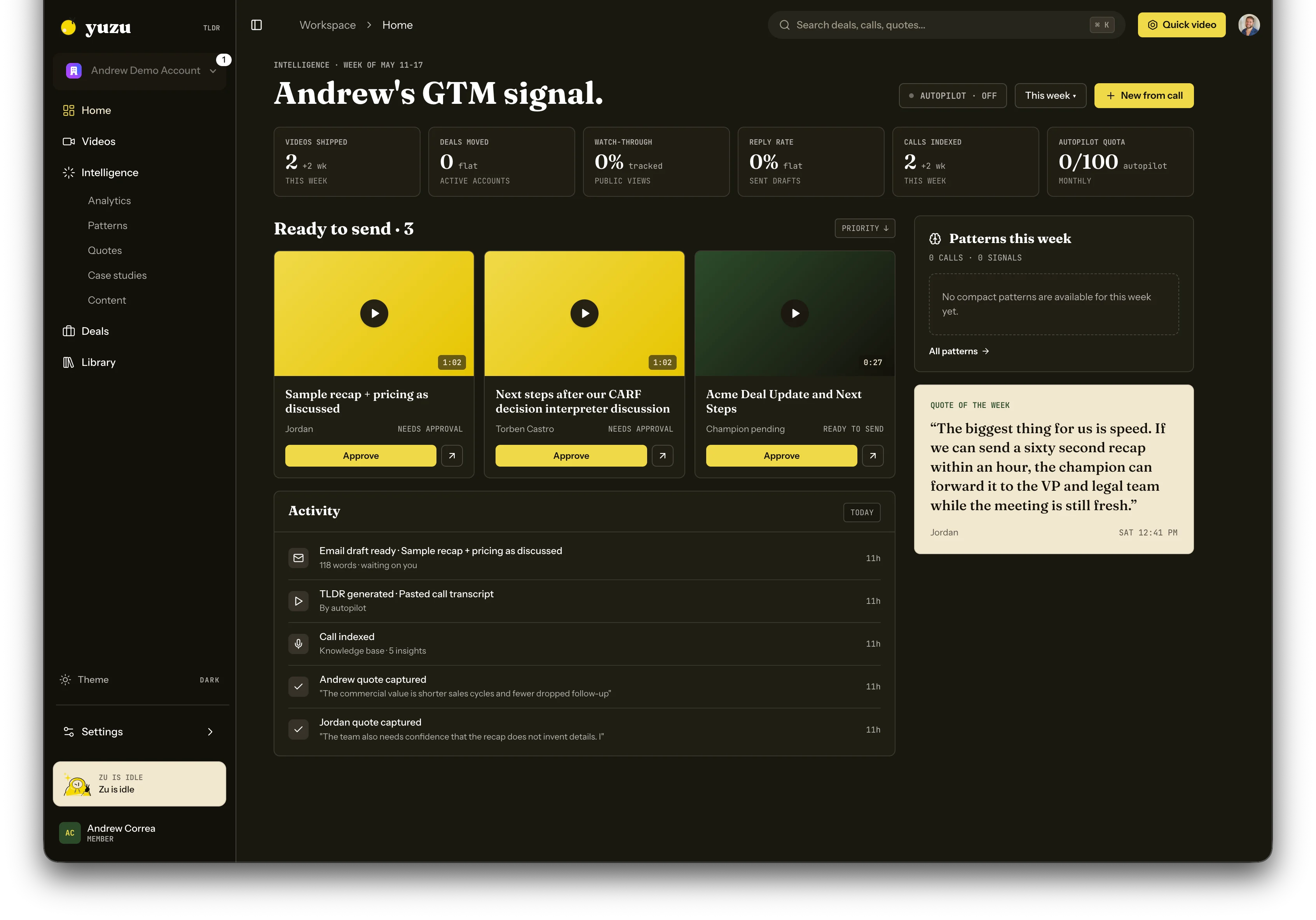
2. Set up your brand, voice, and avatar
Open Settings -> Brand & Voice. You only need three things ready before your first video:- A presenter avatar (optional). Upload a photo, choose realistic or cartoon, then generate the talking presenter Yuzu can place in recap videos.
- A voice. Pick a provided voice, or use a cloned voice if your workspace has one.
- A logo and colors (optional but recommended). The brand panel controls public pages, thumbnails, and generated video styling.
3. Connect your sources
Most teams skip the manual paste step entirely by connecting a notetaker. Then connect Gmail, Google Calendar, and LinkedIn so replies, meetings, and social engagement can return to the deal thread. Open Settings -> Integrations and pick the sources you need:Gmail
Send tracked email and backfill contact history.
Google Calendar
Sync meetings, create invites, and share booking links.
Draft posts and track buyer engagement.
Fireflies
API key + webhook.
Granola
API key.
Fathom
OAuth.
HubSpot
OAuth — pulls call recordings from HubSpot.
4. Create your first video
From Home, click Quick video or New from call. You’ll see two ways in:- Paste a call summary or transcript. Anything 50+ words. Yuzu generates a script and continues automatically.
- Pick from connected meetings. Available once you’ve connected a notetaker — just click a meeting from the list.
5. Review (or skip review)
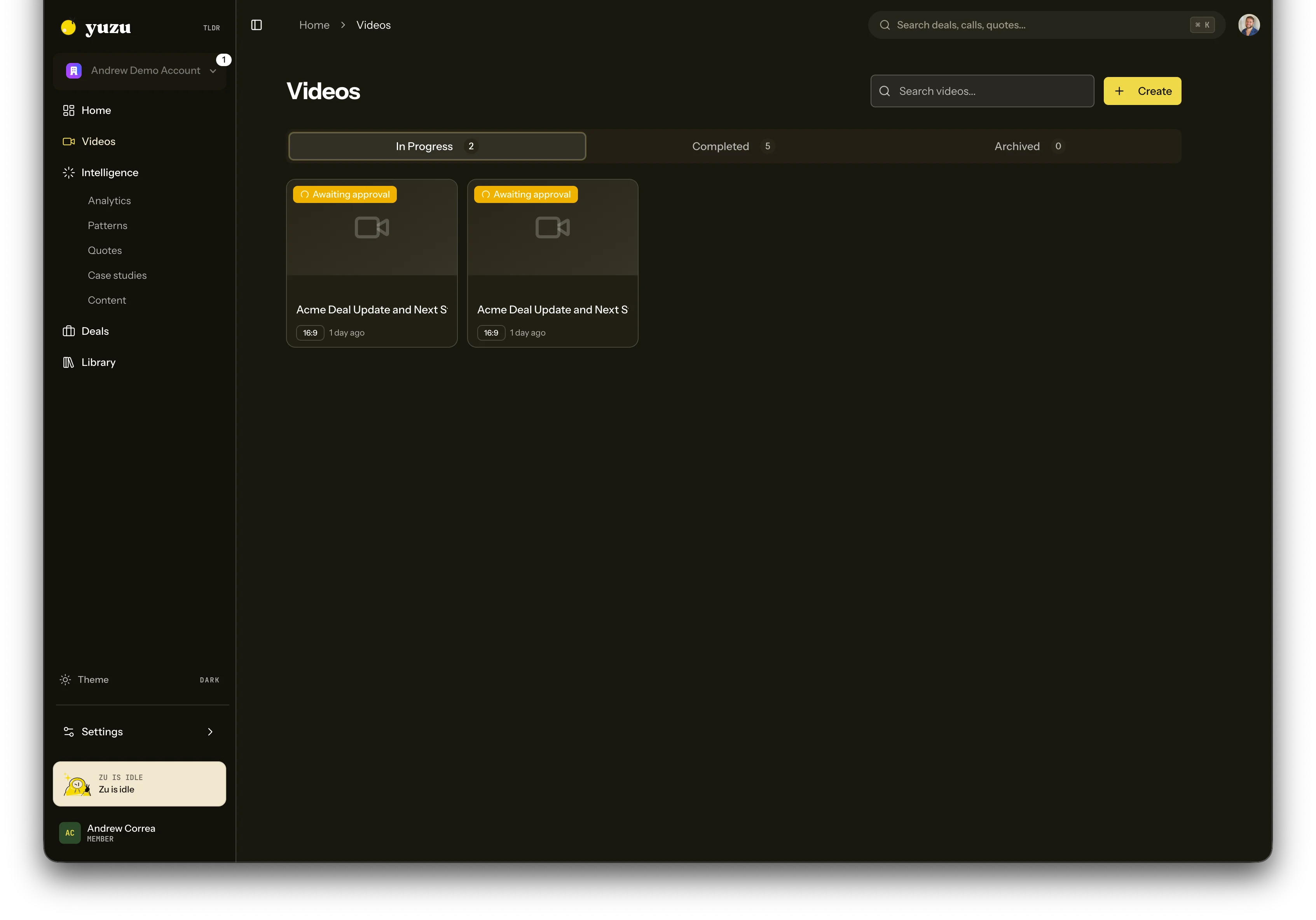
By default, Yuzu auto-approves the script and renders the video end-to-end. You’ll see it appear in Videos -> In progress, and you’ll get a notification when it’s ready. Want a human gate on every video? Toggle Settings -> Automations -> Require script approval. After that, every flow stops at the script step until you approve, edit, or reject it.6. Share the video or buyer package
When the video finishes rendering, open it from Videos:- Copy a Yuzu Link to send via email — viewers don’t need an account, and you get plays/CTA analytics for each link.
- Download the MP4 if you’d rather attach it directly.
- Push to HubSpot if you’ve connected HubSpot — the video gets attached to the matching deal.
7. Create your business page
Home can prompt you to create a master business page: a shareable overview page and master TLDR for what you sell. Paste a short product description and one real call transcript. Yuzu uses that source material to generate the page and make future recap work sharper.Next steps
Understand deals
Group calls, videos, links, and drafts into buyer threads.
Use Calendar
Review synced meetings, create invites, and manage booking links.
Use Cmd-K
Search records or ask questions across call context.
Connect more sources
Notetakers, CRMs, Slack, Zapier — all under Settings -> Integrations.
Drive Yuzu via API
For teams that want to wire Yuzu into their own automations.