> ## Documentation Index
> Fetch the complete documentation index at: https://docs.yuzulabs.io/llms.txt
> Use this file to discover all available pages before exploring further.
# Quickstart
> Send your first sales-call video from the Yuzu dashboard in five minutes.
This walk-through is for the **Yuzu dashboard at [app.yuzulabs.io](https://app.yuzulabs.io)**. If you'd rather drive Yuzu programmatically, jump to the [API quickstart](/api-reference/quickstart).
## 1. Sign in and pick (or create) a workspace
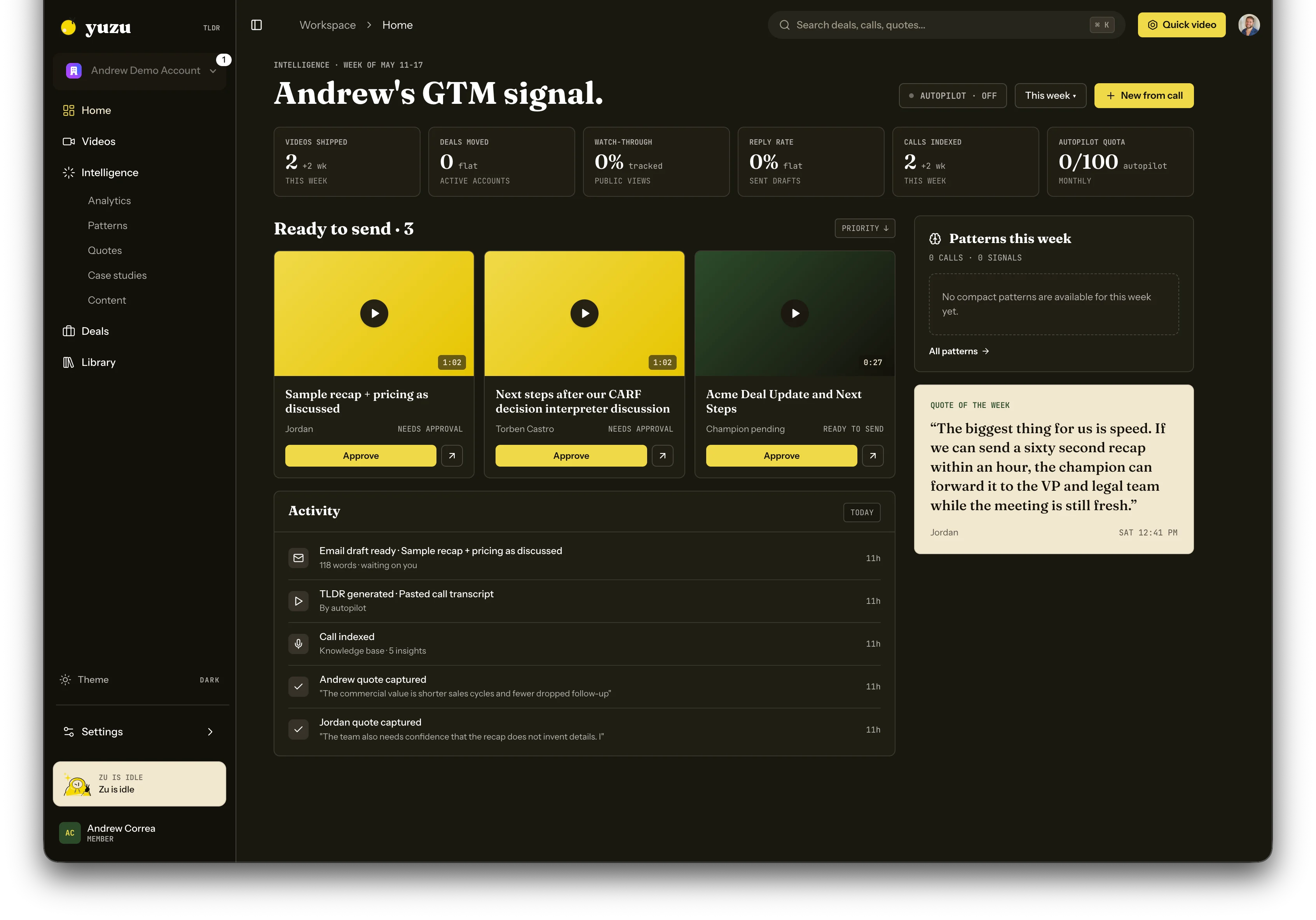
Sign in at [app.yuzulabs.io](https://app.yuzulabs.io). If your team already has a workspace, accept the invite from your inbox. Otherwise, create a new workspace from the welcome screen — pick a name and you'll land on **Home**.
 ## 2. Set up your brand, voice, and avatar
Open **Settings -> Brand & Voice**. You only need three things ready before your first video:
* **A presenter avatar** (optional). Upload a photo, choose realistic or cartoon, then generate the talking presenter Yuzu can place in recap videos.
* **A voice.** Pick a provided voice, or use a cloned voice if your workspace has one.
* **A logo and colors** (optional but recommended). The brand panel controls public pages, thumbnails, and generated video styling.
## 3. Connect your sources
Most teams skip the manual paste step entirely by connecting a notetaker. Then connect Gmail, Google Calendar, and LinkedIn so replies, meetings, and social engagement can return to the deal thread.
Open **Settings -> Integrations** and pick the sources you need:
Send tracked email and backfill contact history.
Sync meetings, create invites, and share booking links.
Draft posts and track buyer engagement.
API key + webhook.
API key.
OAuth.
OAuth — pulls call recordings from HubSpot.
Once connected, every meeting that matches your automation rules will trigger a video draft.
If you'd rather not connect anything yet, skip to the next step and just paste a transcript by hand.
## 4. Create your first video
From Home, click **Quick video** or **New from call**. You'll see two ways in:
* **Paste a call summary or transcript.** Anything 50+ words. Yuzu generates a script and continues automatically.
* **Pick from connected meetings.** Available once you've connected a notetaker — just click a meeting from the list.
## 2. Set up your brand, voice, and avatar
Open **Settings -> Brand & Voice**. You only need three things ready before your first video:
* **A presenter avatar** (optional). Upload a photo, choose realistic or cartoon, then generate the talking presenter Yuzu can place in recap videos.
* **A voice.** Pick a provided voice, or use a cloned voice if your workspace has one.
* **A logo and colors** (optional but recommended). The brand panel controls public pages, thumbnails, and generated video styling.
## 3. Connect your sources
Most teams skip the manual paste step entirely by connecting a notetaker. Then connect Gmail, Google Calendar, and LinkedIn so replies, meetings, and social engagement can return to the deal thread.
Open **Settings -> Integrations** and pick the sources you need:
Send tracked email and backfill contact history.
Sync meetings, create invites, and share booking links.
Draft posts and track buyer engagement.
API key + webhook.
API key.
OAuth.
OAuth — pulls call recordings from HubSpot.
Once connected, every meeting that matches your automation rules will trigger a video draft.
If you'd rather not connect anything yet, skip to the next step and just paste a transcript by hand.
## 4. Create your first video
From Home, click **Quick video** or **New from call**. You'll see two ways in:
* **Paste a call summary or transcript.** Anything 50+ words. Yuzu generates a script and continues automatically.
* **Pick from connected meetings.** Available once you've connected a notetaker — just click a meeting from the list.
 ## 5. Review (or skip review)
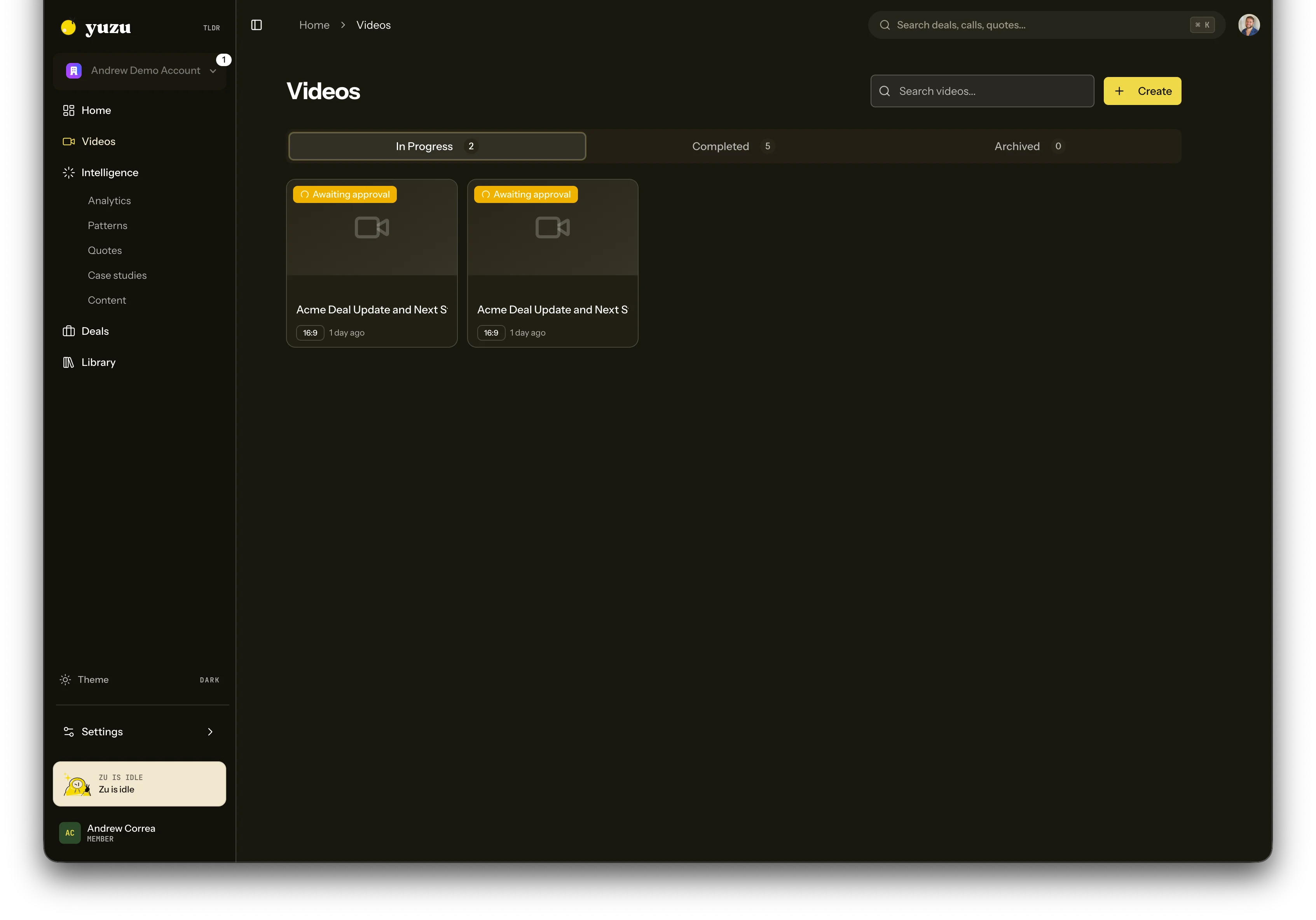
By default, Yuzu auto-approves the script and renders the video end-to-end. You'll see it appear in **Videos -> In progress**, and you'll get a notification when it's ready.
Want a human gate on every video? Toggle **Settings -> Automations -> Require script approval**. After that, every flow stops at the script step until you approve, edit, or reject it.
## 6. Share the video or buyer package
When the video finishes rendering, open it from **Videos**:
* **Copy a Yuzu Link** to send via email — viewers don't need an account, and you get plays/CTA analytics for each link.
* **Download the MP4** if you'd rather attach it directly.
* **Push to HubSpot** if you've connected HubSpot — the video gets attached to the matching deal.
For deal work, the TLDR is usually part of a buyer package. Open the deal page to review the TLDR, business-case page, and follow-up email together before sending.
## 7. Create your business page
Home can prompt you to create a master business page: a shareable overview page and master TLDR for what you sell. Paste a short product description and one real call transcript. Yuzu uses that source material to generate the page and make future recap work sharper.
## Next steps
Group calls, videos, links, and drafts into buyer threads.
Review synced meetings, create invites, and manage booking links.
Search records or ask questions across call context.
Notetakers, CRMs, Slack, Zapier — all under Settings -> Integrations.
For teams that want to wire Yuzu into their own automations.
## 5. Review (or skip review)
By default, Yuzu auto-approves the script and renders the video end-to-end. You'll see it appear in **Videos -> In progress**, and you'll get a notification when it's ready.
Want a human gate on every video? Toggle **Settings -> Automations -> Require script approval**. After that, every flow stops at the script step until you approve, edit, or reject it.
## 6. Share the video or buyer package
When the video finishes rendering, open it from **Videos**:
* **Copy a Yuzu Link** to send via email — viewers don't need an account, and you get plays/CTA analytics for each link.
* **Download the MP4** if you'd rather attach it directly.
* **Push to HubSpot** if you've connected HubSpot — the video gets attached to the matching deal.
For deal work, the TLDR is usually part of a buyer package. Open the deal page to review the TLDR, business-case page, and follow-up email together before sending.
## 7. Create your business page
Home can prompt you to create a master business page: a shareable overview page and master TLDR for what you sell. Paste a short product description and one real call transcript. Yuzu uses that source material to generate the page and make future recap work sharper.
## Next steps
Group calls, videos, links, and drafts into buyer threads.
Review synced meetings, create invites, and manage booking links.
Search records or ask questions across call context.
Notetakers, CRMs, Slack, Zapier — all under Settings -> Integrations.
For teams that want to wire Yuzu into their own automations.